01// sysadmin
System Administration
Debian · Ubuntu · AlmaLinux · CentOS · Fedora · Windows Server
I build reliable infrastructure and useful software. 10+ years with Unix systems, web development, security and automation — from idea to production.
Servers, networks, observability and security. I care about what happens after “it works on my machine”.
If a task repeats, it becomes code. Bash, Python and Ansible turn manual operations into predictable pipelines.
Infrastructure is only half the job. I build the products, panels and tools people actually interact with.
I don’t treat AI as magic and I don’t fear it as a replacement. I use it as another engineering instrument: automate faster, explore wider, verify the result.
 Debian
 Ubuntu
 CentOS
 AlmaLinux
 Linux
Linux Nginx
Nginx Docker
 Ansible
 Grafana
 Prometheus
 PHP
PHP Python
 Node.js
 Astro
Astro MySQL
MySQL MariaDB
 PostgreSQL
 Redis
Redis Git
Git GitHub
 GitLab
 Cloudflare
 Let’s Encrypt
 Proxmox
 Raspberry Pi
 WordPress
 Laravel
 JavaScript
 TypeScriptDebianUbuntuCentOSAlmaLinuxLinuxNginxDockerAnsibleGrafanaPrometheusPHPPythonNode.jsAstroMySQLMariaDBPostgreSQLRedisGitGitHubGitLabCloudflareLet’s EncryptProxmoxRaspberry PiWordPressLaravelJavaScriptTypeScript
My name is Nick. I develop websites, administer Linux servers and solve the awkward technical problems between code and infrastructure.
For more than 10 years I’ve been setting up Unix systems and building websites of varying complexity. I’m into system security, automation and making things simpler instead of adding layers of complexity.
Outside terminals and editors, I make music, drink coffee and read.
From bare-metal Linux servers to full-stack web development — a decade of practical experience.
Debian · Ubuntu · AlmaLinux · CentOS · Fedora · Windows Server
cPanel · DirectAdmin · aaPanel · HestiaCP · FastPanel · VestaCP
Bash · Python · PowerShell · Ansible · PHP
PHP · HTML/CSS · JavaScript · WordPress · Laravel · Node.js
Zabbix · Grafana · Prometheus · Netdata · Nagios
SSL/TLS · VPN · Iptables · Virus Removal · Server Hardening
Small products and services I built and maintain for developers, sysadmins and everyone else.
Useful tools for short links, file uploads, notes and more.
Web console packed with tools for system administrators.
Fast, simple code exchange and sharing.
Write and publish a clean page instantly.
My self-hosted personal image library.
Notes and tutorials on Linux, DevOps, security and development.
Free subdomain on your server with HTTPS protection in one command.
A community blog about everything.
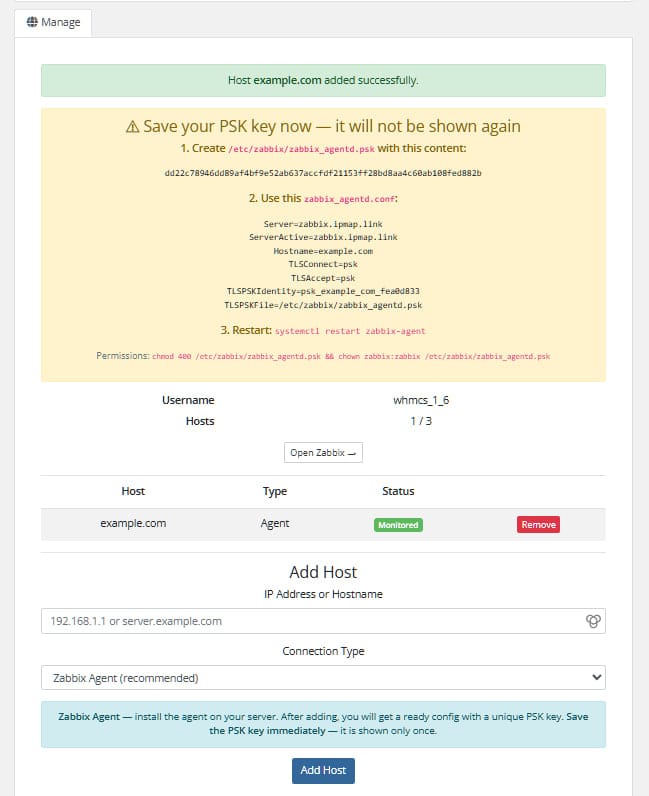
WHMCS provisioning module for Zabbix — sell network monitoring as a service. Automates account creation, suspension, termination and password changes for Zab…
read article ↗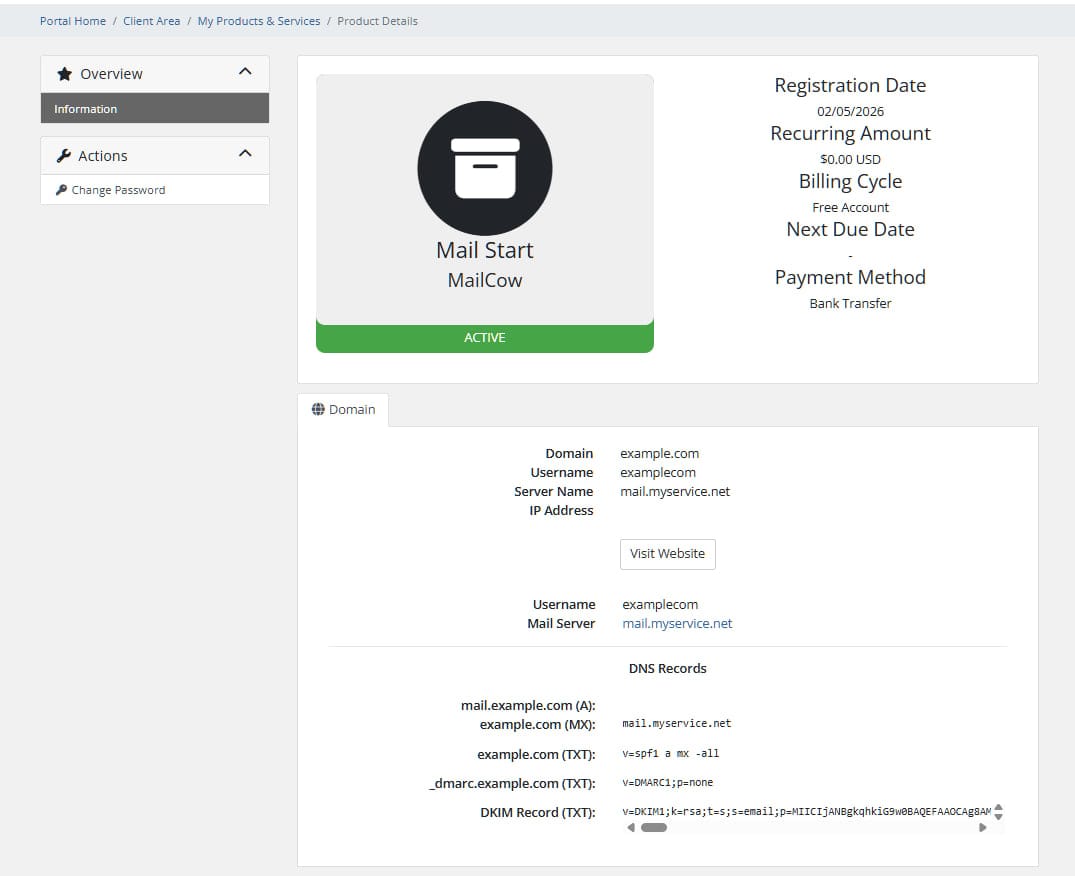
WHMCS provisioning module for Mailcow — automates creation, suspension, termination and password changes for email domains. Features * Automatic provis…
read article ↗
At the end of April 2026, two critical vulnerabilities surfaced simultaneously, affecting millions of servers around the world. One is in the Linux kernel it…
read article ↗
The most effective way is to install LMD (Maldet) and integrate it with the ClamAV engine to speed up scanning. Below is a step-by-step guide for Ubuntu/Deb…
read article ↗
Use command from download: wget http://downloads3.ioncube.com/loader_downloads/ioncube_loaders_lin_x86-64.tar.gz Unarhive: tar -zxvf ioncube_loaders_lin_x…
read article ↗
Sometimes you need to recursively set permissions on files and folders, but we have a lot of files and folders and it is inconvenient to write chmod every ti…
read article ↗
3-XU - Xray panel with support for multi-protocol multi-user expiration, traffic limitation and IP addresses (Vmess, Vless, Trojan, ShadowSocks and Wireguard…
read article ↗
Everything will be running on Debian 12. 1. Install the components: apt install docker docker.io docker-compose 2. Run the script: bash -c "$(wget -qO…
read article ↗OFF DUTY / AUDIO LAB
I make music for myself.
You can listen too.
Videos, releases & experiments.
Tracks, sketches & works in progress.
Listen to released music.
Listen to Max Adderly on Apple Music.
Music, directly from the artist.
Website, server optimization, automation or something custom — tell me what needs to work.